These options will depend exclusively on your business purpose and business strategy.
Also, you should remember that some options can be disabled through the Theme Options, e.g. price range, tag keywords.
To enable or disable options for pricing plans, simply go to WordPress > Dashboard > Pricing Plans

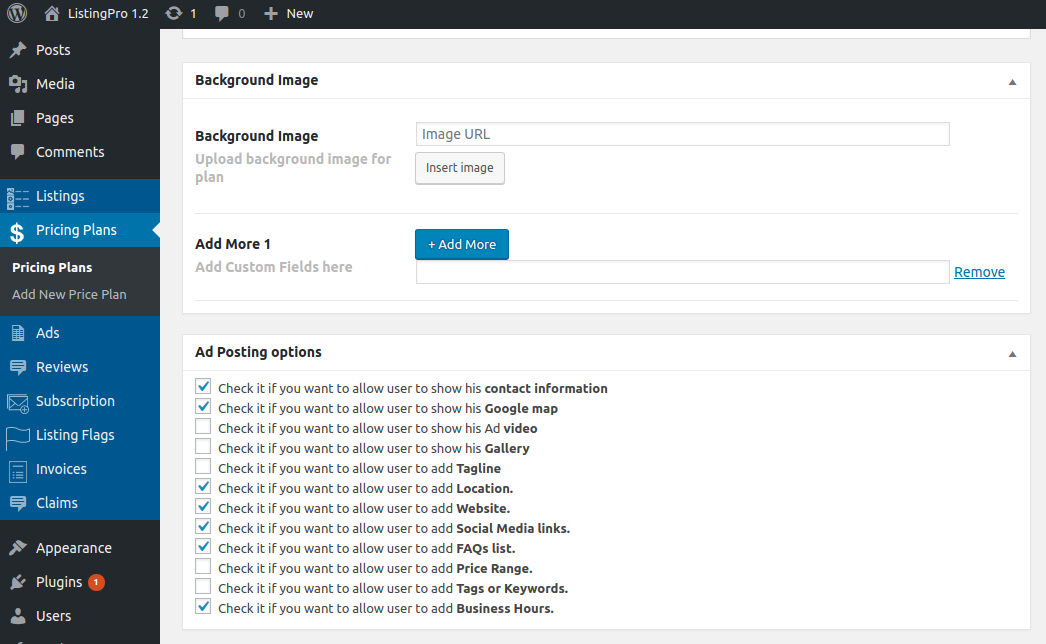
After selecting your options for each plan, the result will be shown as defined.
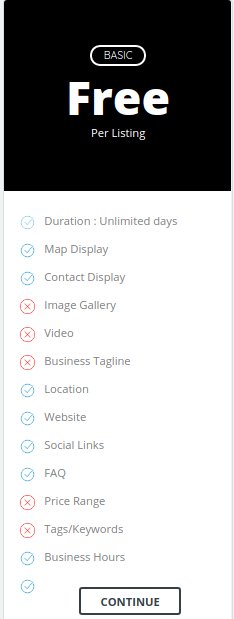

Also, remember that most of the options that are available in the pricing plan, you also have full control over your Theme Options by going to Listing Settings > Listing Submit & Edit and some other options in the backend.
As per the Envato policy, the license for page builders (WPBakery/Elementor Pro) is not included. Updates for external plugins are released with the package when it’s tested and it’s compatible with ListingProWP or its add-on.
You can purchase the license if you require an update immediately, but we don’t recommend and might not be able to provide support for extra add-ons.
WE CAN NOT PROVIDE AN ETA ON WHEN THE LATEST VERSION OF THE PAGE BUILDER WILL BE UPDATED NOR CAN WE GIVE INDIVIDUAL USERS THE LATEST VERSION OF THE PAGE BUILDER AS PER THE LICENSE AGREEMENT.
Please read Envato Policy regarding this topic.
To change the location image please refer to Wordpress Dashboard > Listings > Locations. Then edit the location name and upload location image.
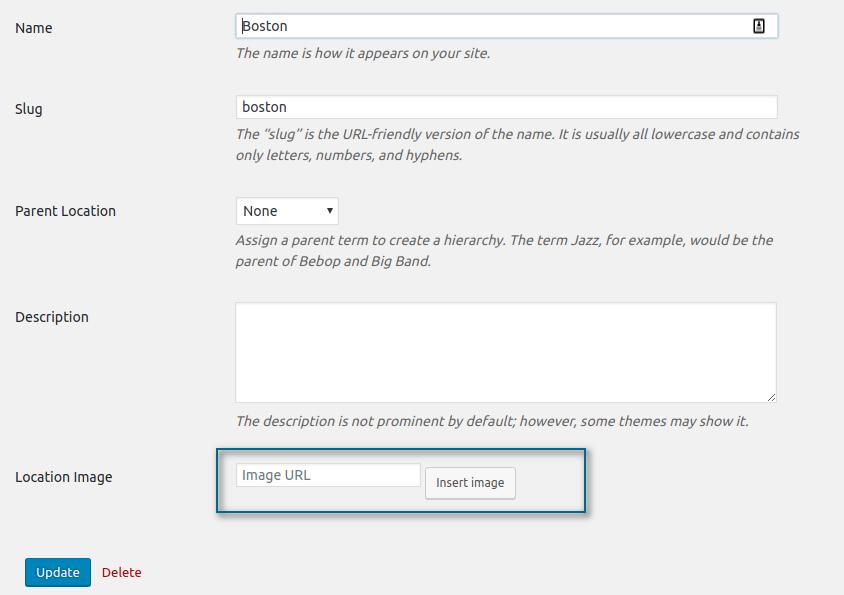
Let’s add an image to the Boston Location.

Check if the uploaded image was defined as Full Size and then Click Insert into post.
As we can see, our image is now added to our Boston Location as shown above. Always remember to check if the image was defined as Full Size.
The way you’ll show your image depends on your business strategy, you can edit and insert anything that best describes your business design, niche, etc. You can crop and scale your image to find a better position for your final result. As the example above, it was added a text in the image.
PayPal
The Paypal settings for Sandbox & Live, you can go directly to their SandBox Page. Also if you have any doubts, you can check their Documentation through this page.
2Checkout
The 2Checkout settings for Sandbox & Live, you can go directly through their Sandbox Page. Also if you have any doubts, you can check their Documentation through this page.
Stripe
The Stripe settings for Sandbox & Live, you’ll find the API and Secret Key through your Stripe Dashboard. You can read Stripe Documentation for more details here.
Always on development, use the appropriate payment gateway as Sandbox. Whether you choose the Live payment, all payments will be deducted from your real money. To avoid any a headache, use always the Sandbox. Just change to Live when you finish your tests and are ready to go public to start getting profits with your directory.
RESPONDING TO REVIEWS
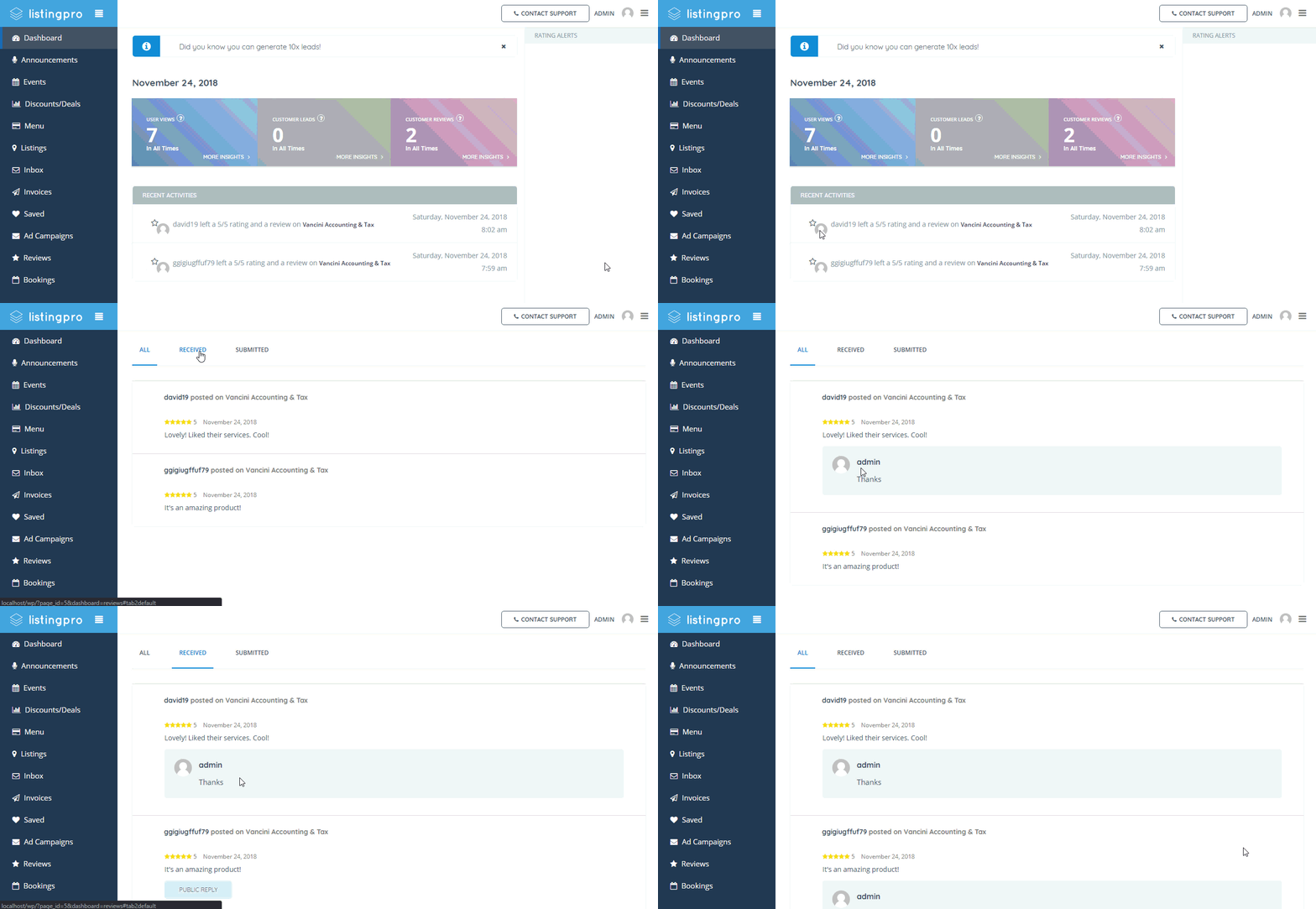
Listing Author can manage all received reviews from the front end user dashboard.
If you are a Listing Author then log in to the site and refer to the front end user dashboard. Then refer to the following option called Reviews > Received then choose any review and click on text box. Now if you want to reply, just type your comment and hit the ”Public Reply” button.
Currently, the Description box supports HTML but only by the admin.
As for when using the Front-end Form Submission (FES) users can use the built-in WYSIWYG editor but cannot insert HTML in the description box.
Note: Only the FAQs allow inserting HTML.