LisitngPro back end and front end ’’Description’’ box supports HTML tags. So admin can add images from the back end and users can add images by entering ’’img’’ HTML tag inside of the description box from the front end.
Let’s start the example using our admin account. Let’s head to our WordPress Dashboard > Listings > and click on the Listing that we’re going to update the image into the Description.
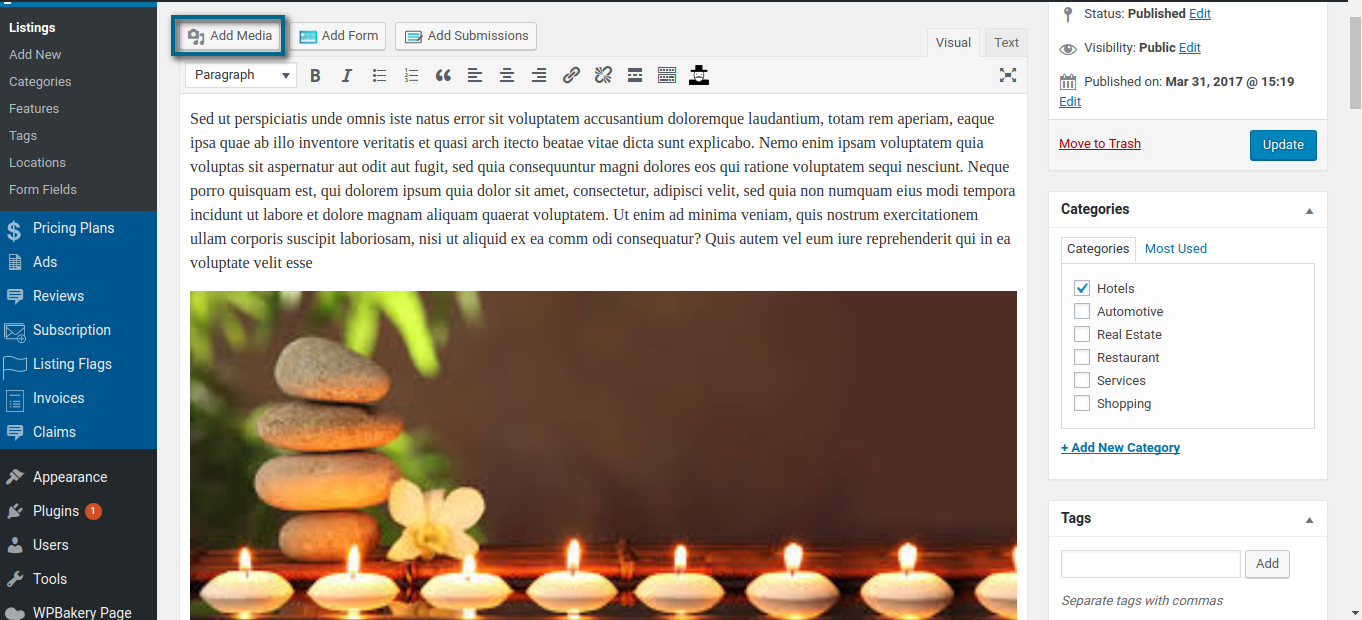
We can simply upload the image and you can see the result instantaneously. Now, let’s head over to our User Dashboard > My Listings > Edit
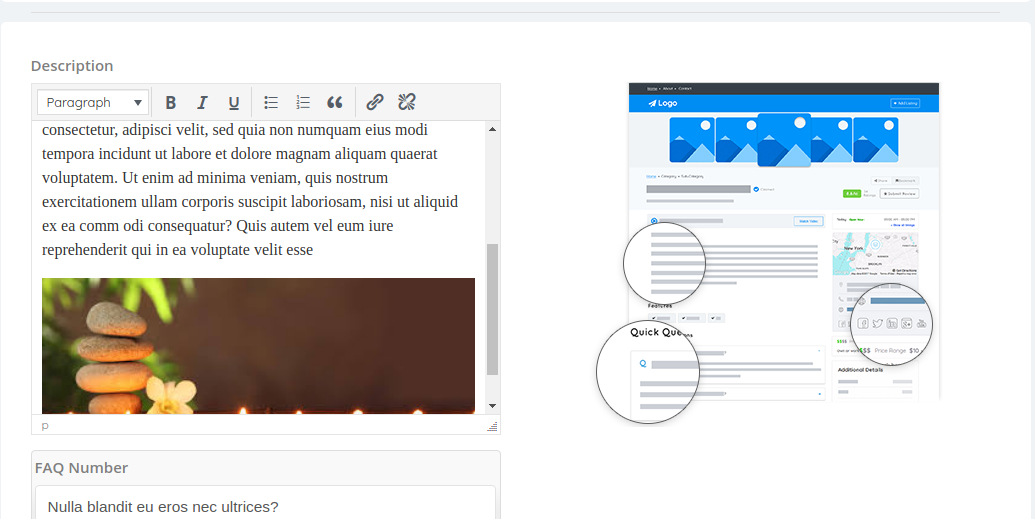
As we can see, our listing is working pretty well with our pre-defined image added from the back-end. Now, to add an image, simply copy the image link and paste it, where you can be added. Let’s add a new image to the center of the Description.
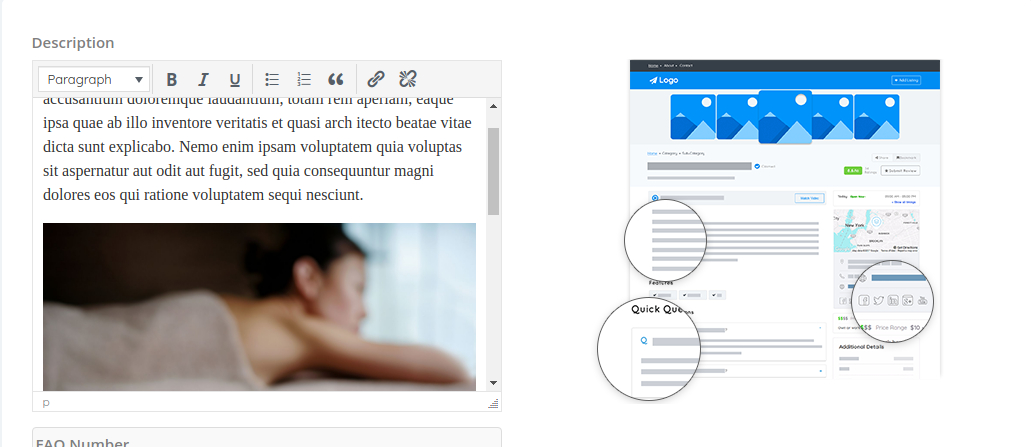
Here in this example we’re using images collected from Google Search. In the first attempt, we added the image from the back-end which gives us the possibility to upload the image. Now, in this second attempt we simply copied the image address and paste it directly into our Description.
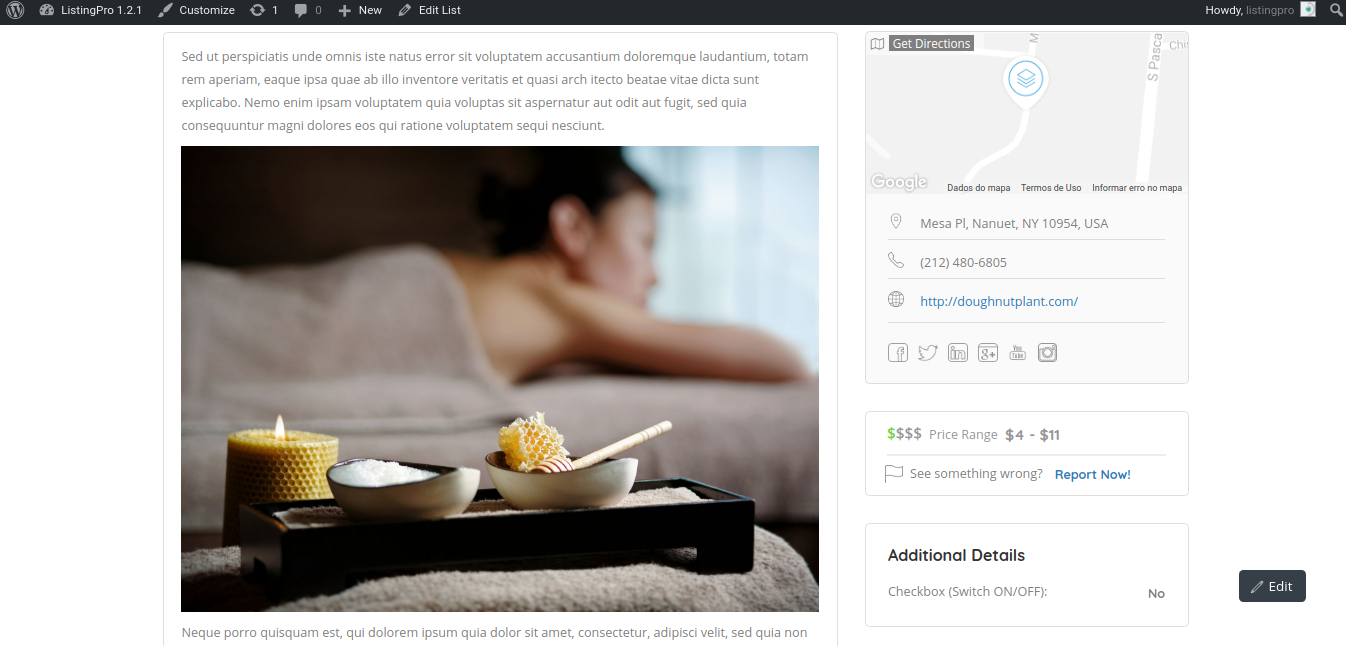
Store your images into a service where you can simply copy and paste the image address.
Before trying to submit your image address, you can check if the image can be imported by using Codepen
In case if you feel any difficulty manipulating HTML tags, you can learn more at htmlcheatsheet
GPS (via Google API) option is now available for more accurate geolocation which is sometimes not possible with Geo IP.
The Accuracy of geolocation depends on how does your geolocation is determined. We use Geolocation by GPS and IP Address.
There are a variety of ways that your device and the location service provider calculate your position, and some are more accurate than others. GPS is often the most accurate.
How does the Geolocation API can determine your location –
IP Address Location information based on your IP address uses an external database to map the IP address to a physical location. The advantage of this approach is that it can work anywhere; however, often IP addresses are resolved to locations such as your ISP’s local office. Think of this method as being reliable to the city or sometimes neighborhood level.
GPS Global Positioning System, supported by many newer mobile devices, provides extremely accurate location information based on satellites. Location data may include altitude, speed, and heading information. To use it, though, your device has to be able to see the sky, and it can take a long time to get a location. GPS can also be hard on your batteries.
Cell Phone Cell phone triangulation figures out your location based on your distance from one or more cell phone towers (obviously the more towers, the more accurate your location will be). This method can be fairly accurate and works indoors (unlike GPS); it also can be much quicker than GPS. Then again, if you’re in the middle of nowhere with only one cell tower, your accuracy is going to suffer.
WiFi WiFi positioning uses one or more WiFi access points to triangulate your location. This method can be very accurate, works indoors and is fast. Obviously, it requires you are somewhat stationary (perhaps drinking a venti iced tea at a coffee house).
Source: https://stackoverflow.com/questions/18328381/geolocation-give-wrong-position
Preferably MP4 format.
You can edit your Video Banner the way you want to. There’s no limitation regarding time duration. But as we know, there should be included at least 30sec or 1min video.
More extended videos, may cause a delay on the screen and users may face some instability during page loading.
Remember that the video should be added to your WordPress Media Gallery to parse the Video URL to your homepage directory
We have a set of availability that works along with Visual Composer Elements. These custom Elements were made exclusively designed for ListingPro, which you can find through the ListingPro Section within at Add Element. You can customize your homepage the way you want to, and also make major changes with built-in options to edit design patterns, columns, and rows.
Some plugins will also take action if there’s any compatibility with Visual Composer. You must check which plugin you have installed in your WordPress and see if there’s an add-on for Visual Composer. If yes, you will also be able to include these plugins into your pages effortlessly.
To work with Visual Composer is a deep step that you have to make progressive tests, to reach the desirable experience.
Visual Composer [WPBakery] is the primary tool to customize your pages. If you plan to use another plugin to create slides or any other drag & drop tool to customize your pages. Bear in mind that some plugins may not fully work with ListingPro.
Yes, all added features will be displayed during the category selection. Features will be visible as checkboxes but category based. You can filter listings based on the selected category and features.

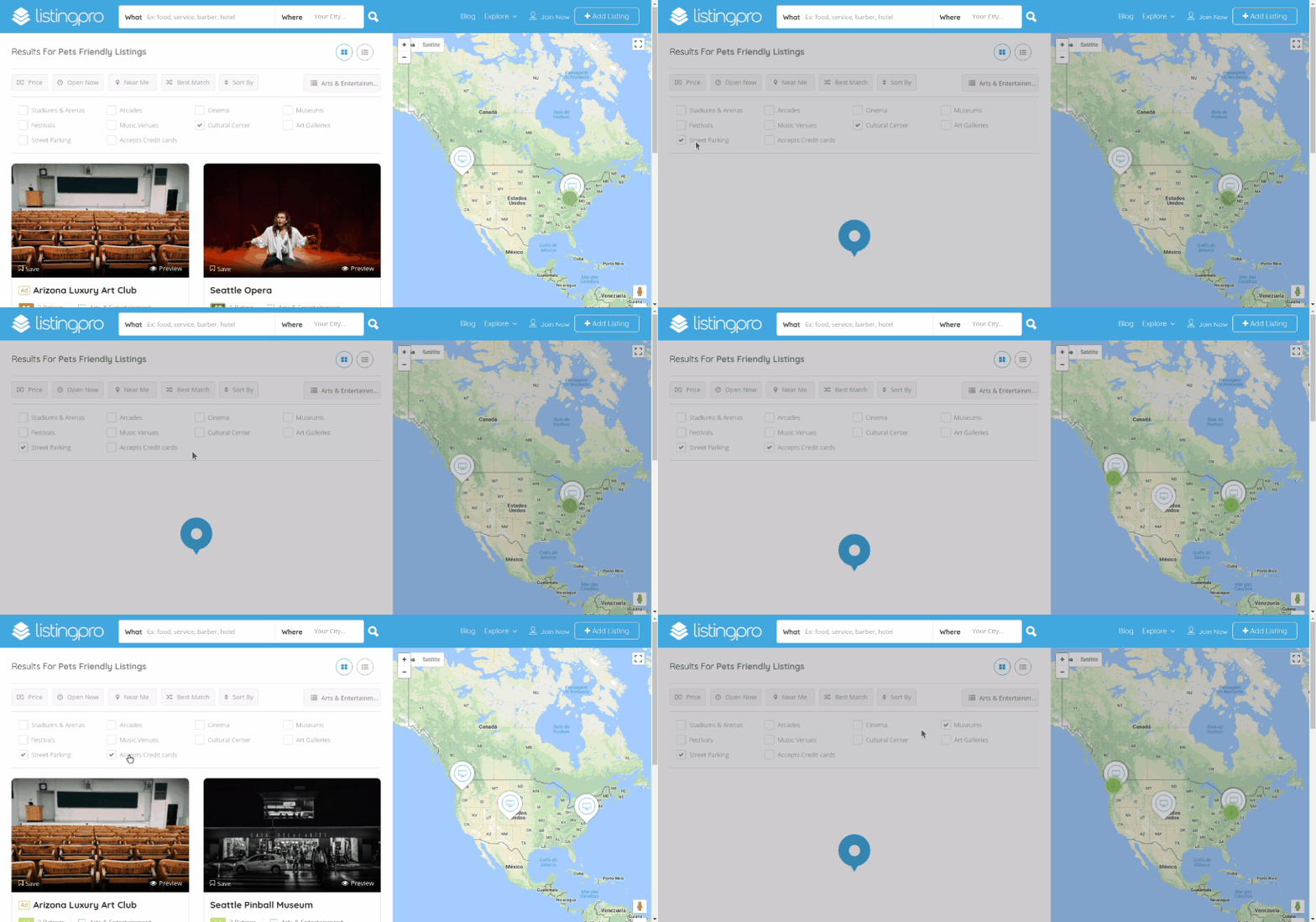
To filter listings first you have select any category then mark the necessary features as per your needs and listings search results will be filtered as per your choice.
UPDATING LISTINGS FROM FRONT-END DASHBOARD
It’s easy and simple for the Listing Author to update or edit a published listing. Listing Author can log in to the site and edit/update listing from the front-end dashboard.
 After clicking on the Edit Button, you’ll be redirected to the Edit your Listing page, and there you can fulfill or renew the listing created.